Tools That Help Creators Work Faster with Images, Audio, and Content
Creating content today isn’t just about ideas, it’s also about speed. This guide introduces simple web tools that help creators move faster, reduce friction, and focus more on creating instead of processing.
Creating content today isn’t hard. Doing it well and quickly is.
If you run a blog, post on social media, or build anything online, you already know the pressure. You need good visuals, clean images, and sometimes even audio—all on a regular basis. And it adds up fast.
A simple post can turn into a long process. You might need to create an image, fix its quality, remove distractions, convert formats, and prepare it for different platforms. Doing all of that by hand takes time most creators don’t have.
That’s why more people are turning to lightweight web tools.
In this guide, we’ll go through a set of simple tools that can speed up your workflow. These tools don’t replace your ideas. They just help you move faster.
Create Visuals Faster with AI Image Generation
Vheer
What problem it solves
Creating images from scratch takes time. Stock photos don’t always fit. And design tools can be slow if you just need something quick.
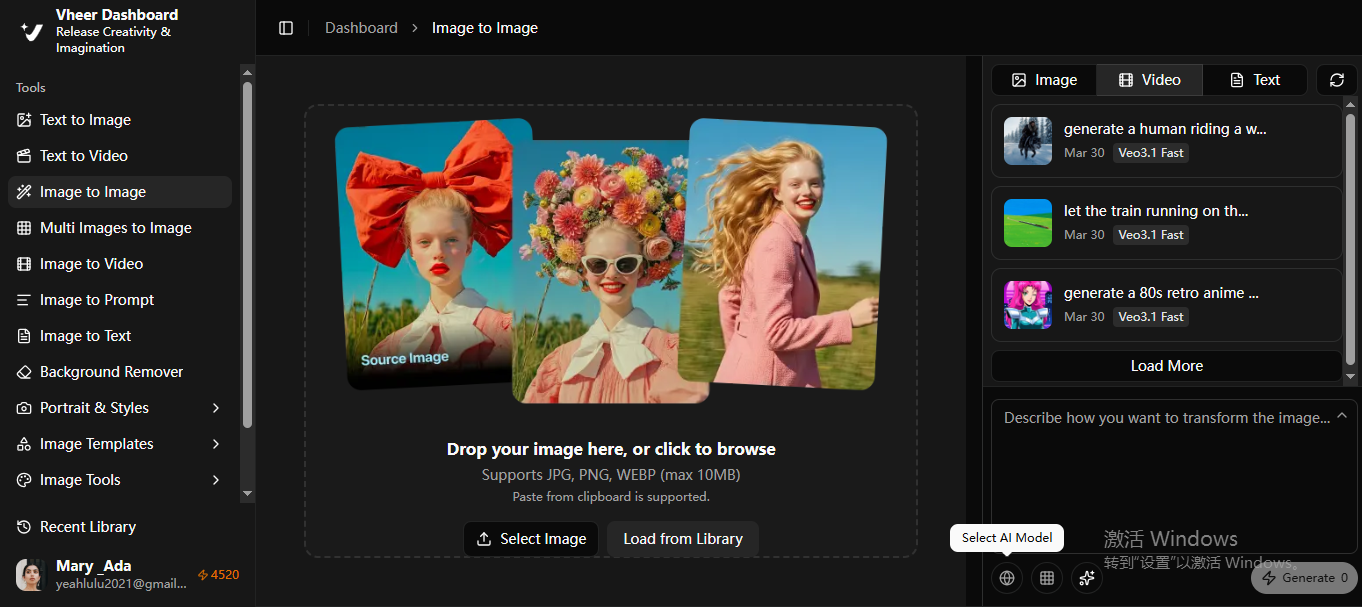
Vheer solves that by letting you generate images from simple text. No design skills needed. You describe what you want, and it gives you usable visuals in seconds.
Key features
- Text-to-image generation from simple prompts
- Multiple visual styles (illustration, realistic, social media-friendly)
- Fast output with several variations to choose from
- Works directly in the browser, no setup needed
How to use
- Open Vheer's text to image generator and enter a simple prompt to describe what you want to create.
- Select the AI models from the given list, such as Nano Banana 2, SeeDream V4, Flux Klein, GPT Image 2, etc.
- Customize an aspect ratio based on where the image will be used, like square for profiles or wide for blog visuals.
- Click "Generate" to generate image from text prompts.
Best for
Quickly creating blog visuals, social media images, or simple marketing graphics without opening a design tool
Improve Image Quality Instantly
ImgUpscaler
What problem it solves
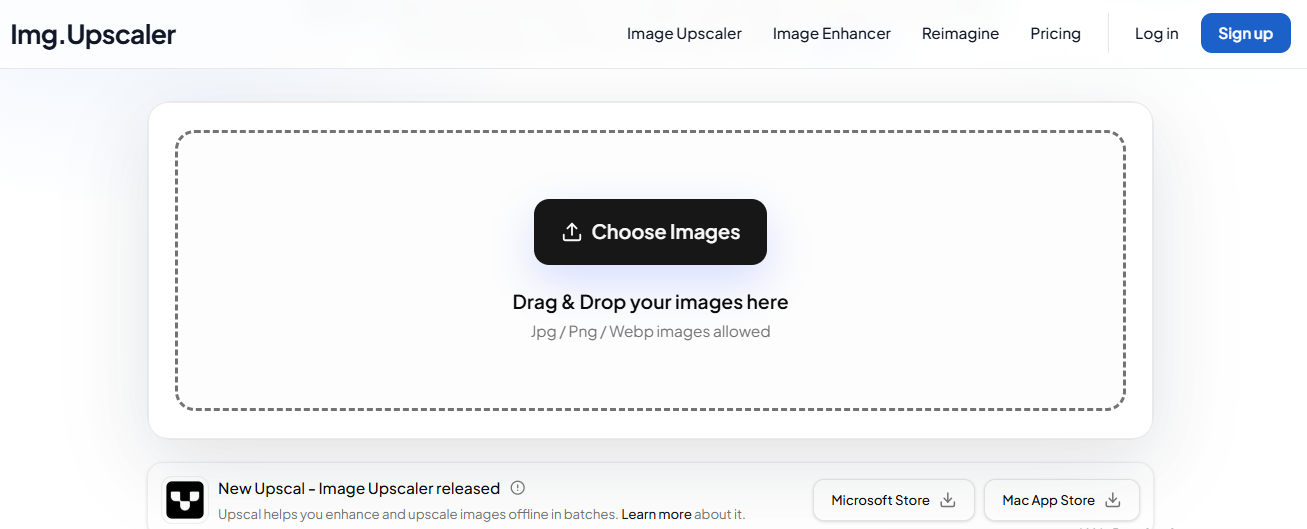
Low-quality images are everywhere. Maybe it’s an old file, a compressed download, or something pulled from social media. Once it’s blurry, it’s hard to use.
ImgUpscaler helps fix that. It increases resolution while keeping details sharp, so your images look clean again.
Key features
- AI-powered image upscaling
- Keeps edges and details sharp
- Supports different scaling levels
- Simple upload and download process
How to use
- Visit Imgupscaler's website and upload the photo you want to enhance.
- Choose upscale percentage from the given options, including 200% and 400%.
- Click "upload and start" to increase image resolution without losing quality.
- Save the enhanced images by clicking "Download" button.
Best for
Fixing blurry images and making them usable for blogs, websites, or social posts
ImgLarger
What problem it solves
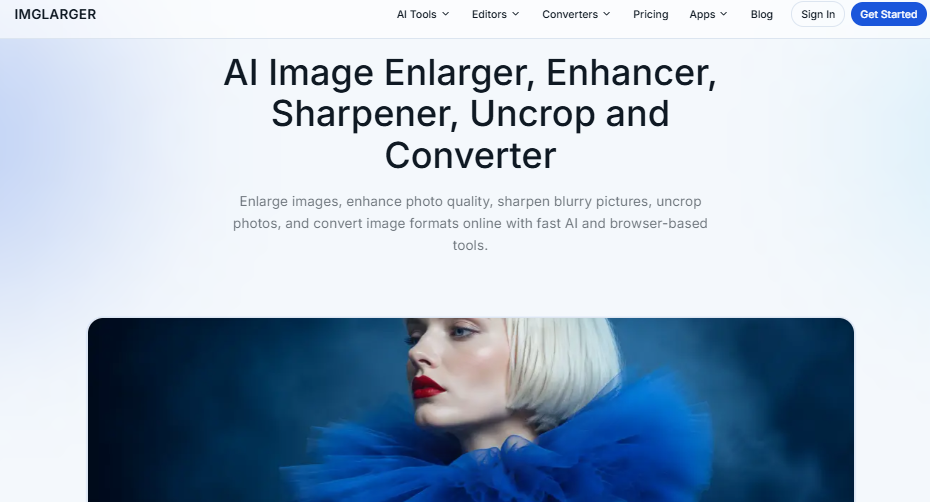
Sometimes you don’t just need a bigger image—you need a cleaner one. Noise, compression, and lack of detail can still be an issue after resizing.
ImgLarger focuses more on AI photo enhancement. It can reduce noise, sharpen blurry screen, and improves clarity automatically without any skills required.
Key features
- Image upscaling with detail enhancement
- Intelligent noise reduction that cleans up grain, compression artifacts, and visual noise while preserving important details
- Enhance old or blurry faces with clearer skin texture
- Restores faded or low-quality portraits with more natural tones and better clarity
- Remove backgrounds from images while preserving subjects and fine details.
How to use
- Choose a specific photo enhancing tool based on your purpose, such as AI image enlarger, AI image denoiser, AI old photo repair, etc.
- Click the tool icon to open its page, where you can upload your image and adjust the available settings.
- Click "Start Processing" and wait ImgLarger to process the image in seconds.
Best for
Improving image quality when you need sharper, more polished visuals
Clean and Enhance Images Automatically
ObjectRemover
What problem it solves
Even a great photo can be spoiled by unwanted objects or distractions. Whether it's a tourist walking into your vacation shot, power lines across a landscape, text or watermarks on an image, or clutter that takes attention away from your subject, manual editing can be slow and frustrating.
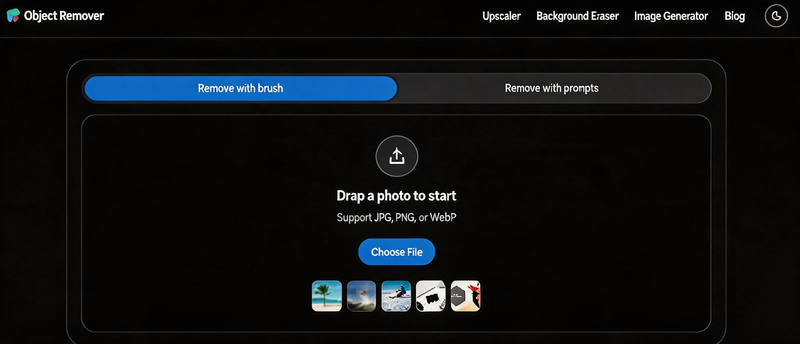
ObjectRemover uses AI to detect and seamlessly erase unwanted elements while naturally reconstructing the surrounding background. Instead of spending time with complicated editing software, you can create clean, professional-looking images in just a few clicks.
Key features
- AI-powered object removal with natural-looking results
- Remove people, text, logos, watermarks, wires, and other distractions
- Smart background reconstruction that blends seamlessly with surrounding areas
- Simple brush tool for precise object selection
- Works on photos, product images, travel pictures, and more
How to use
- Go to the homepage and click Choose Files to upload the image you want to edit.
- Use the Brush tool to highlight the object or area you want to remove. Adjust the brush size with the slider for more precise selection.
- For an easier experience, use Remove with a Prompt. Simply describe what you want to remove, and the AI will identify it automatically.
- Click Remove Object and wait a few seconds while the AI removes the selected item and seamlessly fills in the background.
- Preview the result, make additional edits if needed, and download your cleaned image.
Best for
Removing unwanted objects, people, text, logos, watermarks, and other distractions to create clean, professional-looking photos with minimal effort.
BG Eraser
What problem it solves
Whether you're preparing product images for an online store, creating marketing materials, or designing social media content, repetitive background removal can quickly become a time-consuming task.
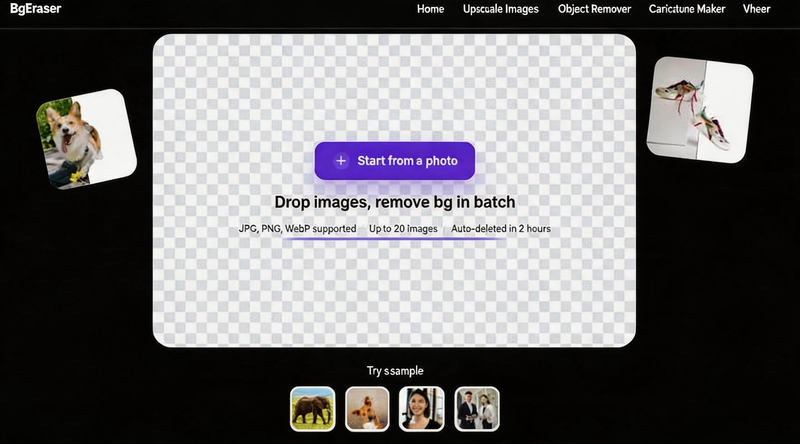
BG Eraser uses AI to automatically detect the main subject and remove the background with clean, accurate cutouts. Unlike many background removers, it also supports batch processing, allowing you to edit multiple images at once and significantly speed up your workflow.
Key features
- AI background removal with accurate subject detection
- Upload and process up to 20 images in a single batch
- Clean cutouts for people, products, animals, vehicles, and other objects
- Automatically generates transparent PNG images
- Preserves fine details like hair, fur, and intricate edges
- Ideal for e-commerce, marketing, design, and content creation
How to use
- Open BG Eraser and upload up to 20 images at once.
- Click "Remove Background" to get started. This tool automatically detects the main subject in each image and removes the background within seconds.
- Preview the processed images and make adjustments if necessary.
- Download your images with transparent backgrounds or continue editing them with a new background.
Best for
Bulk background removal for product images, thumbnails, or content assets
ImageColorizer
What problem it solves
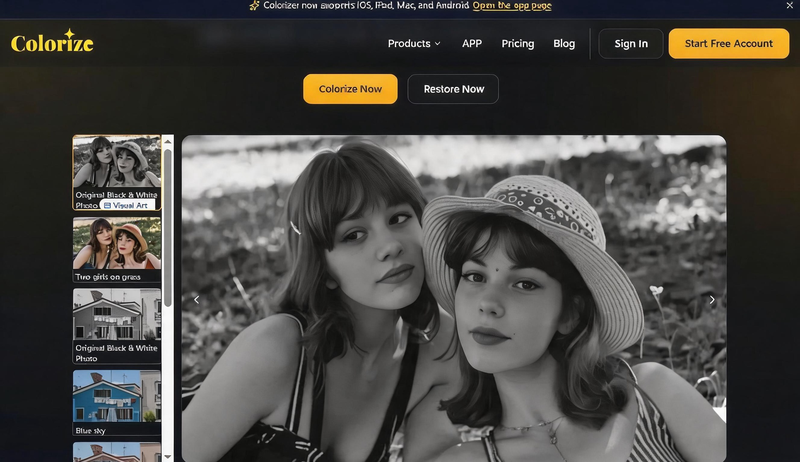
Old black-and-white photos preserve precious memories, but years of fading, scratches, and the lack of color can make them feel distant and lifeless. Traditionally, restoring and colorizing these images required advanced photo editing skills and hours of manual work.
ImageColorizer can add realistic, natural-looking colors to old photos in just seconds. Whether you're restoring family portraits, historical photographs, vintage landscapes, or old film scans, it and applies colors that bring your memories back to life.
Key features
- Colorize black & white photos with realistic colors.
- Enhance old photos to improve clarity and image quality.
- Retouch old portraits by restoring facial details naturally.
- Repair scratched photos by removing scratches, creases, and stains.
- Remove objects from old photos without affecting surrounding details.
- Fast online processing with no software installation required.
- High-Quality results ready for printing, sharing, or archiving.
How to use
- Go to the ImageColorizer website and select the Colorize tool.
- Upload a black-and-white photo in JPG or PNG format.
- Choose a colorization model (V0, V1, or V2) based on your needs.
- (Optional) Enter a text prompt to guide the AI in generating your preferred colorization style.
- Click Upload & Start to begin the colorization process.
- Preview the restored image and download the final result.
Best for
Ideal for colorizing, enhancing, and restoring old or damaged photos. Great for bringing faded memories back to life in just a few clicks.
Turn Photos into Creative Styles
ImageToCartoon
What problem it solves
A standard photo doesn't always capture attention, especially on social media, gaming platforms, or professional profiles. Creating a unique cartoon or artistic avatar traditionally requires illustration skills or expensive design software.
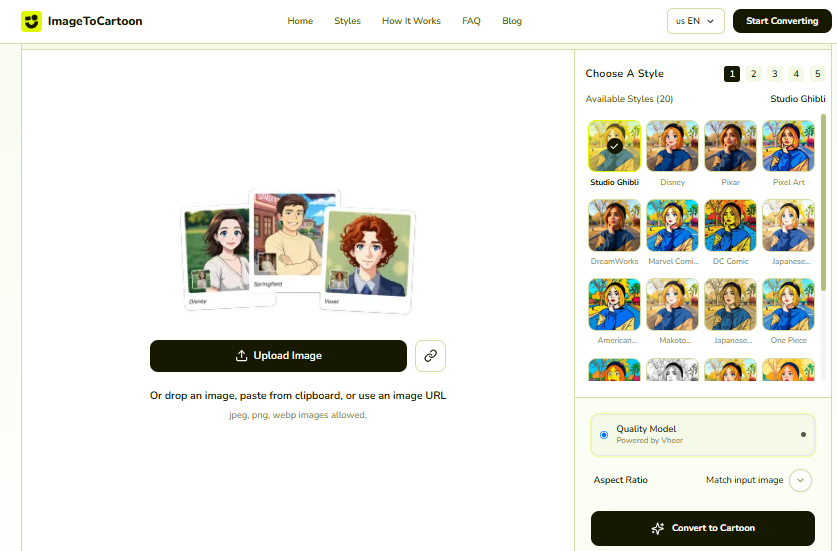
ImageToCartoon instantly convert your photos into eye-catching cartoon portraits and artistic avatars. With multiple illustration styles to choose from, you can create personalized profile pictures, social media avatars, or fun digital artwork in just a few clicks.
Key features
- Transform photos into AI-generated cartoon portraits instantly.
- Choose from 50+ cartoon and artistic styles.
- Create images inspired by Studio Ghibli, Disney, DreamWorks, Makoto Shinkai, One Piece, The Simpsons, Pixel Art, Cel-Shaded, Doodle Art, and more.
- Preserve facial features while applying creative visual effects.
- Fast online processing with no design skills required.
- Download high-resolution cartoon images in seconds.
How to use
- Upload a clear portrait or selfie to the ImageToCartoon website.
- Choose your favorite preset from 50+ cartoon styles, including styles inspired by Studio Ghibli, Disney, DreamWorks, Makoto Shinkai, Pixel Art, and more.
- Select an AI image generation model. Free users can use the default Quality model powered by Vheer.
- Choose an output aspect ratio, such as Match the Input, 1:1, 3:4, or 9:16.
- Click Convert to Cartoon, wait a few seconds for the AI to generate your image, then preview and download the result.
Best for
Whether you're updating your profile picture, designing a unique avatar, or sharing creative content online, ImageToCartoon makes it easy to turn ordinary photos into stunning cartoon artwork.
ImageToSketch
What problem it solves
Not every project needs a colorful or polished look. Sometimes, a simple sketch style feels more artistic, minimal, or expressive. But creating that effect manually can be time-consuming.
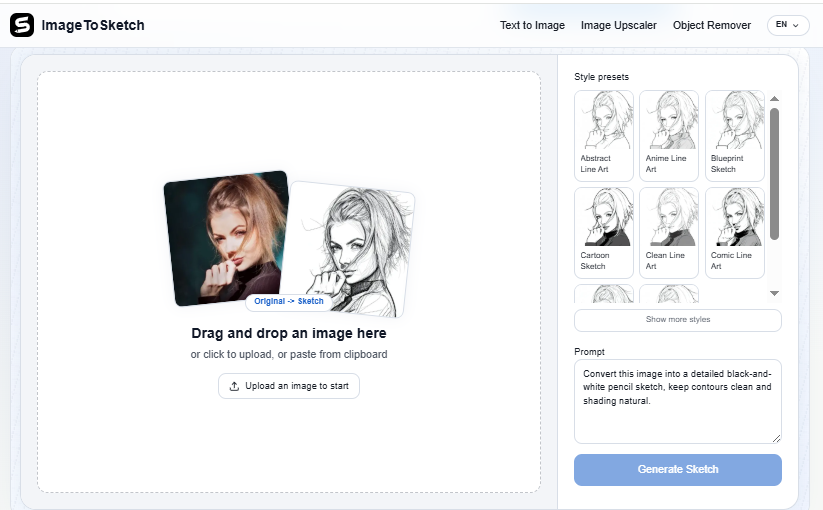
That's where ImageToSketch comes in. It converts your photos into clean, realistic sketch-style artwork. From pencil sketches and line drawings to detailed artistic effects, it transforms ordinary images into expressive illustrations in just a few seconds.
Key features
- Convert photos into realistic sketch-style artwork with AI.
- Support multiple sketch styles, including Abstract Line Art, Cartoon Sketch, Anime Line Art, Blueprint Sketch, Comic Line Art, and more.
- Generate clean line art while preserving important details.
- Works with portraits, pets, objects, architecture, and landscapes.
- Fast online processing with no drawing skills required.
- Download high-quality sketch images instantly.
How to use
- Click Upload an Image to Start and upload the photo you want to convert.
- Choose your preferred sketch style from the available presets, such as Abstract Line Art, Cartoon Sketch, Anime Line Art, Blueprint Sketch, or Comic Line Art.
- Enter a text prompt to customize the sketch effect and guide the AI toward your desired style. (Optional)
- Click Generate Sketch and wait a few seconds for the AI to create your sketch image.
- Save the result by clicking the Download arrow.
Best for
Explore a variety of sketch effects, from Abstract Line Art and Blueprint Sketch to Comic Line Art and Anime Line Art. Perfect for creative expression and digital art projects.
Get the Images You Need, Without Friction
ImgDownloader
What problem it solves
Finding the perfect image online is easy, but downloading it isn't always straightforward. Some websites disable right-click saving, while others only display compressed previews or make it difficult to access the original image.
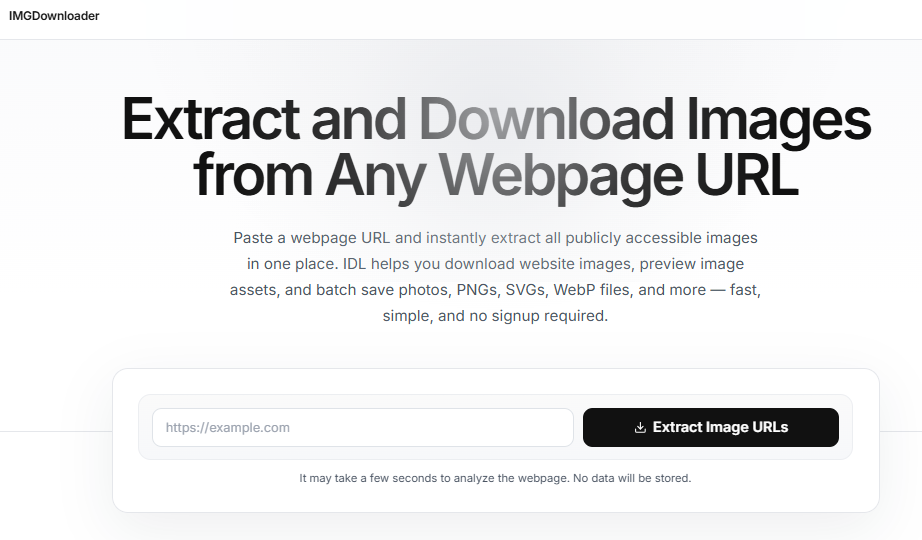
Imgdownloader simplifies the process by letting you extract and download images directly from a webpage or image URL. Instead of saving images one by one or dealing with browser restrictions, you can quickly access and download the images you need in just a few clicks.
Key features
- Download images directly from a webpage or image URL.
- Extract multiple images from a single webpage automatically.
- Save images even when right-click downloading is disabled.
- Preview images before downloading.
- Fast, browser-based tool with no sign-up required.
- Supports high-quality image downloads whenever available.
How to use
- Copy the URL of the webpage or image you want to download from.
- Open Imgdownloader and Paste the URL into the box.
- Click Extract Image Urls to extract all available images.
- Preview the results and download the images you want.
Best for
Quickly download images from webpages for design, presentations, blogs, social media, or personal reference without interrupting your workflow.
Convert Images for Different Platforms
AnyWebP
What problem it solves
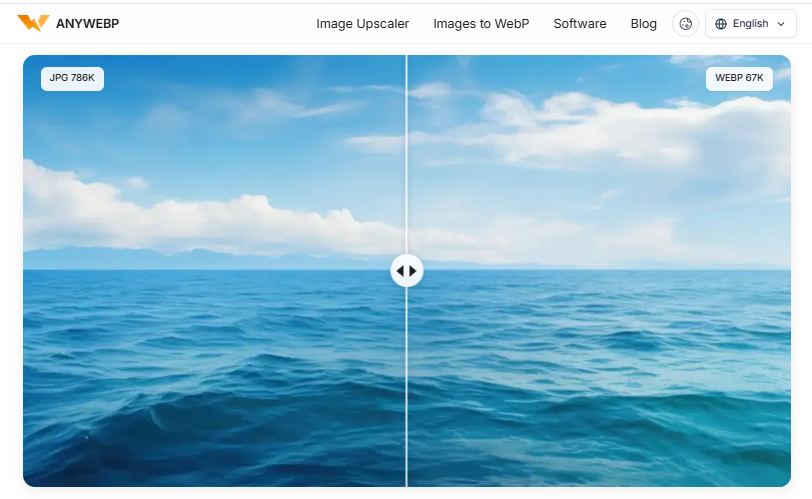
While WebP offers excellent compression and smaller file sizes, it isn't always compatible with every platform or editing tool. You may also need to convert JPG, PNG, GIF, AVIF, or other formats into WebP to improve website performance.
AnyWebP makes image format conversion fast and effortless. Whether you're converting WebP to JPG or PNG for better compatibility, or creating WebP images for faster web loading, you can complete the entire process online without installing any software.
Key features
- Convert WebP to JPG, PNG, GIF, BMP, TIFF, and other popular formats.
- Convert JPG, PNG, AVIF, HEIC, and more into WebP.
- Support batch conversion for multiple images at once.
- Preserve image quality while converting between formats.
- Simple drag-and-drop interface for quick file conversion.
How to use
- Upload one or more images to AnyWebP.
- Choose the output format you want, such as JPG, PNG, BMP, GIF, WebP, etc.
- Adjust the Resize Settings by keeping the original dimensions or resizing the image by pixels or percentage. (Optional)
- Click Convert and wait a few seconds while your images are processed.
- Download the converted images individually or as a batch.
Best for
Quickly prepare images for websites, social media, e-commerce platforms, and design projects by converting them into the format you need.
Turn Text into Audio Content
FreeTTS
What problem it solves
Working with audio often requires multiple tools. You may need to convert text into speech, transcribe recordings, remove vocals from music, enhance voice quality, or edit audio files before publishing. Using separate applications for each task can be time-consuming and inefficient.
FreeTTS brings all these features together in one browser-based platform. Whether you're creating voiceovers, transcribing meetings, improving audio quality, or editing sound files, it helps you complete your audio workflow quickly without installing additional software.
Key features
- Convert text into natural-sounding speech with AI and cloud voices.
- Transcribe speech into editable text with AI speech recognition.
- Remove vocals from songs to create karaoke or instrumental tracks.
- Enhance voice recordings by reducing noise and improving clarity.
- Cut and trim audio with precise waveform editing tools.
- Merge multiple audio files into a single track.
- Compress audio files while maintaining good sound quality.
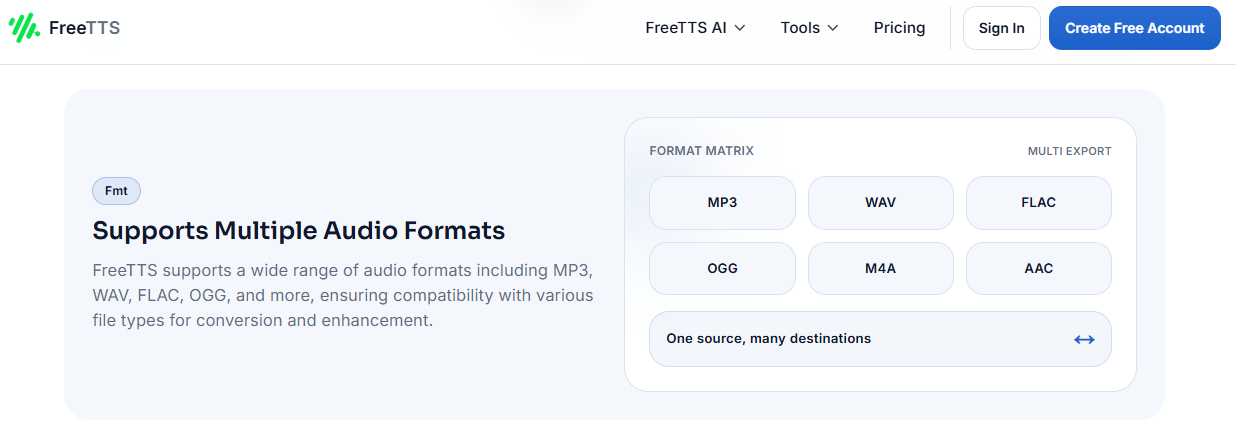
- Convert audio between MP3, WAV, AAC, FLAC, OGG, M4A, and other popular formats.
How to use
- Select the audio tool you want to use, such as Text to Speech, Speech to Text, or Voice Enhancer.
- Upload your file or enter your text, depending on the selected tool.
- Choose the available settings, such as AI voice, language, output format, or audio quality.
- Click Generate or Process and wait a few seconds while the AI completes the task.
- Preview the result and download your processed audio file.
Best for
Ideal for creating voiceovers, transcribing recordings, editing podcasts, removing vocals, converting audio formats, and managing audio files with minimal effort.
Handle Simple File Tasks Quickly
PDFMergeFree
What problem it solves
Keeping related PDF files together makes them easier to share, print, and manage. But many PDF editors are expensive, require installation, or limit basic features behind a paywall.
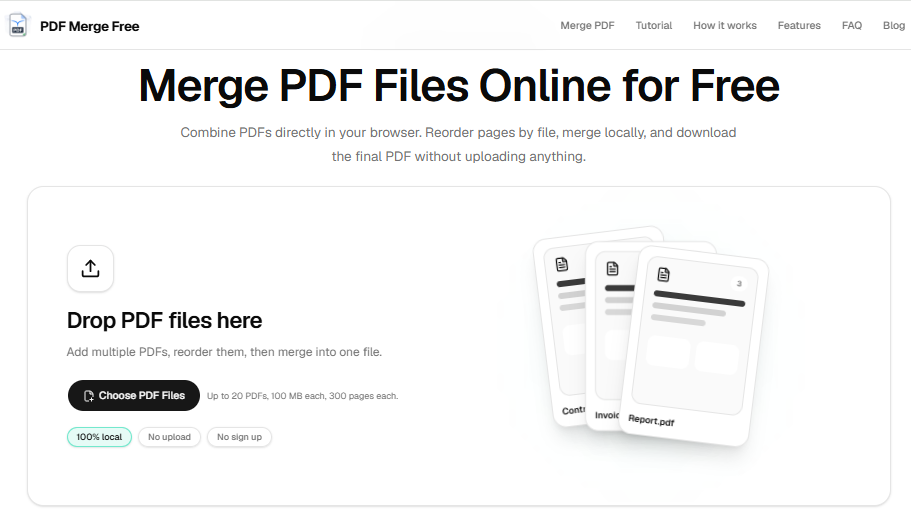
PDFMergeFree offers a simple online solution that lets you merge multiple PDF files in seconds. Just upload your documents, arrange them in the right order, and download a perfectly combined PDF.
Key features
- Merge up to 20 PDFs in one session
- Drag-and-drop reordering before processing
- Browser-based—works on desktop, tablet, and mobile
- Preserves document quality and layout
- Free with no registration required
- Automatic file cleanup after processing for privacy
How to use
- Open PDFMergeFree in your web browser and click Choose PDF Files to upload the PDF documents you want to combine.
- Drag and drop the files to arrange them in the correct order before merging.
- Click Merge PDF to combine your files while preserving the original formatting and page quality.
- Download the merged PDF to your device and review it to make sure all pages are in the correct order.
Best for
Combining contracts, reports, invoices, resumes, and other PDF documents into a single file. Ideal for work, school, and everyday document management.
Final Thoughts
Creating content will always take effort. But not every step needs to be slow.
A lot of the work around content—resizing images, removing backgrounds, converting formats, or turning text into audio—is repetitive. That’s where simple tools can make a real difference.
You don’t need a complicated setup. Just a few tools that handle specific tasks well.
The goal isn’t to use more tools.
It’s to spend less time on the parts that slow you down.