Upscal: Free Offline AI Video Upscaler for Windows, Mac, and iOS

When we open an old video and try to recall the scene from back then, we often find that the image has become blurry. Due to the limited capabilities of early devices, videos recorded in the past appear blurry when played on today's high-resolution displays. Is there a way to improve them?

We can use AI to optimize them. AI upscaling technology analyzes the content of the footage and generates a high-resolution version that restores lost details. This is exactly what makes Upscal so impressive. At its core, it's designed for local image and video enhancement.
It's worth noting that Upscal's enhancement workflow operates in offline mode, requires no account registration, and keeps media files stored on the user's device throughout the entire processing. Let's take a closer look!

What is Upscal?
Upscal at a Glance
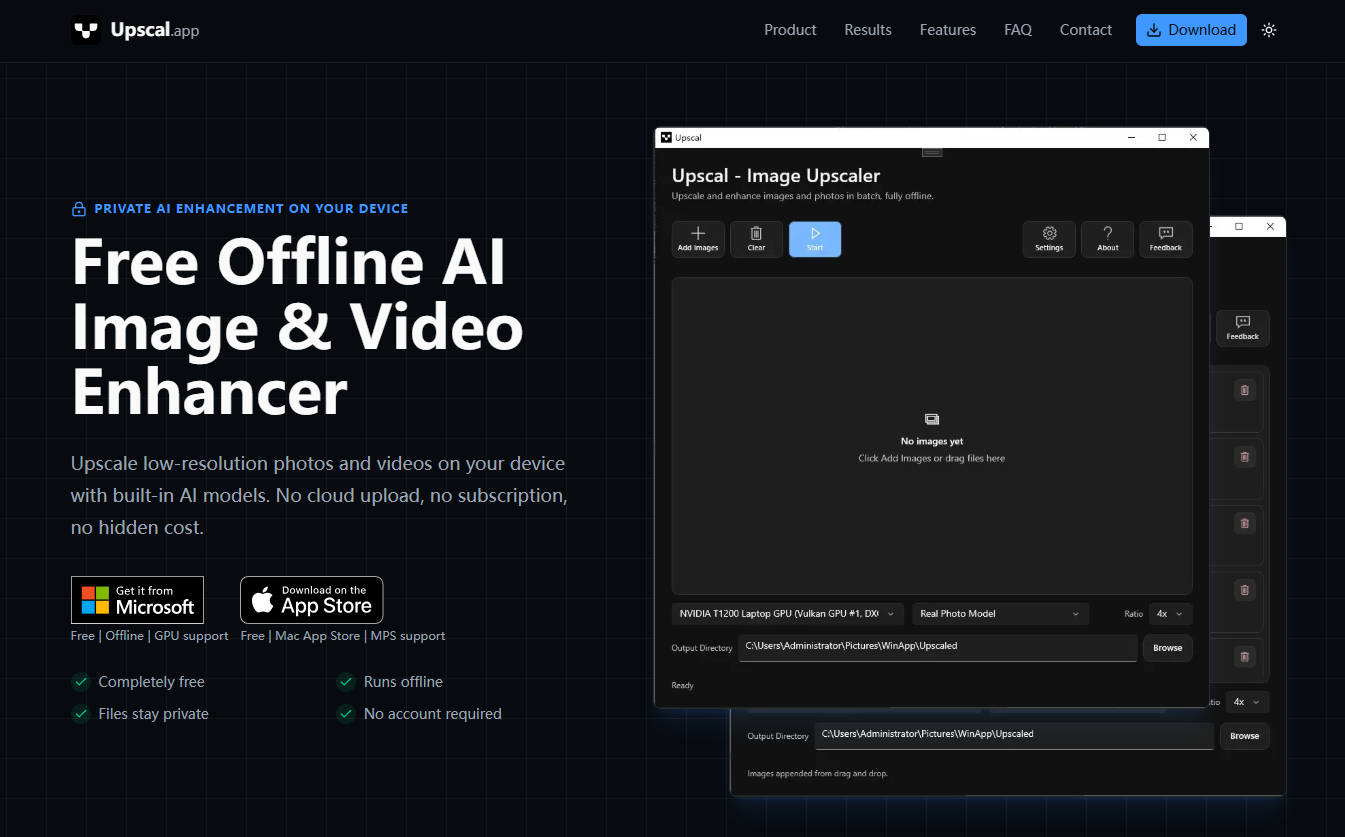
Upscal is a free, AI-powered image and video enhancement app designed for local processing. It supports Windows, macOS, iPhone, and iPad. According to the product page on the Mac App Store, Upscal utilizes GPU-accelerated technologies—including Apple Metal, Metal Performance Shaders, and Core ML—to enable local processing on supported Mac computers.
What Makes Upscal Unique?
The biggest difference lies in its local-first workflow. Most modern AI-enhancement services require you to upload media files to remote servers, which means you have to wait for the files to be sent from your device, processed remotely, and then downloaded.
Upscal, on the other hand, handles standard enhancement without requiring cloud uploads, remote processing queues, or server-side media storage—and the Mac and iOS app pages also highlight this local processing capability. This is particularly valuable for users who need to process large videos or don't want to upload their footage.
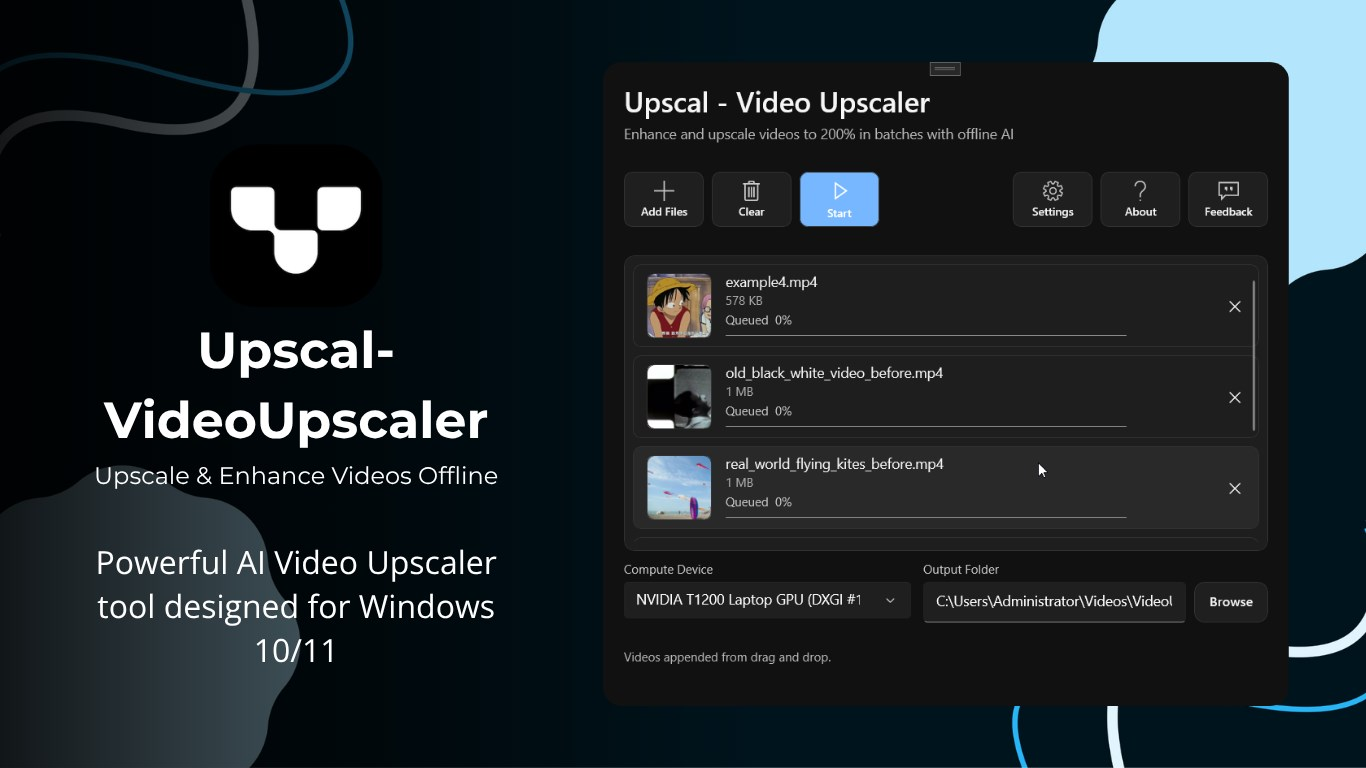
Upscal for Windows offers three modes: Fast, Medium, and Performance. In addition, the Mac version of Upscal offers four modes—"Fast," "Sharpen," "General," and "Anime".

"Quick" mode prioritizes processing speed, "Sharpen" mode focuses on edges and details, "General "mode is a well-balanced choice for everyday content, and "Anime" mode is specifically designed for illustrations and animated footage. Compared to the Mac version, the Windows version offers three modes: "Fast," "Medium," and "Performance."
This allows for a more refined workflow than simply clicking the "Enhance" button and hoping for the best results.

How AI Video Upscaling Actually Works
Traditional super-resolution technology and AI super-resolution technology take completely different approaches to solving the problem. Traditional upscaling methods use existing pixels and rely on mathematical calculations to estimate what the new pixels should look like after the video is enlarged.
Imagine stretching a small photo onto a much larger canvas: the problem is that while the canvas gets bigger, the original photo doesn't suddenly contain more actual information.

AI super-resolution technology, on the other hand, employs a more complex approach. It analyzes images using learned patterns to infer the details that might be present in the enlarged image.
This distinction is crucial because AI super-resolution processing is, by its very nature, a reconstruction—not a "rewind in time". AI models cannot magically restore details that do not exist.
What they can do is infer reasonable structures, reduce distracting artifacts, enhance edges, and generate higher-resolution images that look much more natural on modern screens. This is why the quality of the original file is so critical.

Why Offline AI Video Upscaling Matters
Privacy may sound like an abstract concept—until the files you're working with contain highly personal content. Would you be willing to upload a video of your children, an intimate family gathering, a private business meeting, or an unreleased promotional project?
Even if cloud services have reasonable policies in place, many users are very reluctant to upload videos containing personal information. Upscal's local processing model addresses this concern by keeping standard enhancement processing on the device.

There are also practical advantages. Uploading and downloading large video files can be time-consuming, especially when dealing with long videos or high-bitrate raw files. Local processing eliminates this transfer step, allowing your hardware to handle the processing directly.
Offline processing does not eliminate the need for AI computation. Your computer, phone, or tablet still needs to analyze frames and generate the enhanced output so that the process can be quite resource-intensive.
Therefore, video processing speed depends on your hardware configuration, video duration, source resolution, the selected model, and the output resolution.
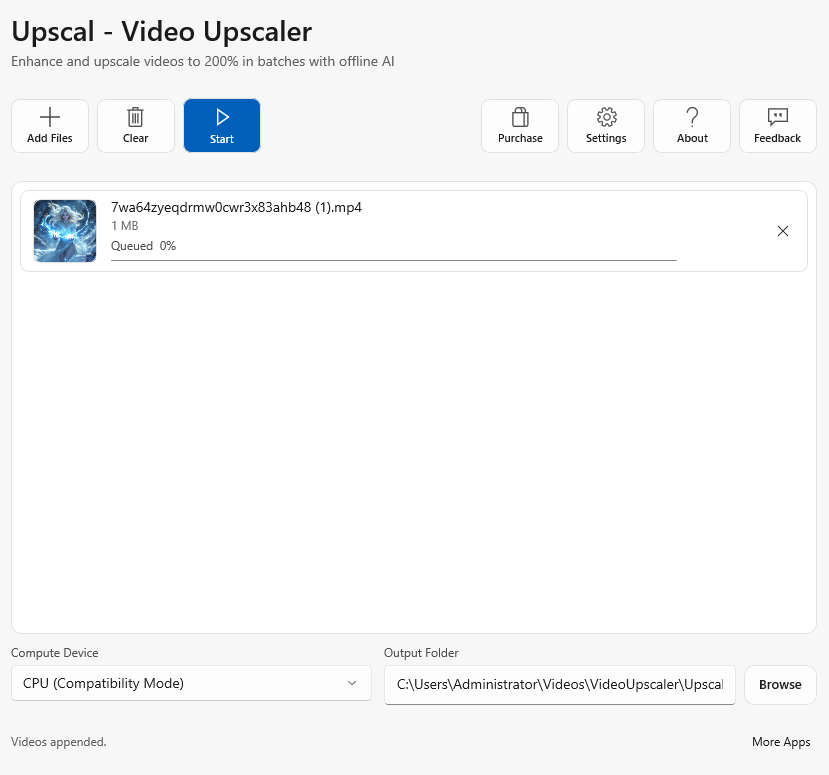
Upscal supports Windows, Mac, iPhone, and iPad.
One of Upscal's most notable practical advantages is its cross-platform compatibility. Currently, Upscal offers versions for Windows, macOS, iPhone, and iPad, allowing users to choose the appropriate platform based on where their videos are stored and their hardware performance.
 Vertexshare Ltd
Features vary slightly across different devices. The Mac version uses Metal, Metal Performance Shaders, Core ML, and Apple GPU acceleration to handle resource-intensive AI video enhancement tasks.
On iPhone and iPad, Upscal offers a workflow more tailored to mobile devices. The current App Store page indicates that the "Fast Model" is available for mobile video enhancement and is optimized for the performance and memory limitations of iPhone and iPad.
 通 张
通 张
More advanced video models—"Sharp," "General," and "Anime"—require the macOS version. The current iOS/iPadOS version supports iOS 16.6 or later, while the Mac version supports macOS 13.5 or later.
For users seeking the most flexible AI video workflow, a high-performance Mac—especially a model equipped with an Apple Silicon chip—may be the better choice.
Which Videos Can Upscal Improve?
Upscal works on a wide variety of low-resolution video footage. Old home videos are a good example. Videos shot years ago reveal all their flaws when played on modern TVs and monitors.
AI-enhancement technology not only makes faces, edges, and textures sharper but also generates large-format output suitable for modern screens. Videos shot with older phones can also serve as excellent source material.
With the rapid advancement of smartphone cameras, videos that look decent on older models appear somewhat blurry when compared side-by-side with newly shot footage.

Social media videos that have been compressed multiple times can also be upscaled using Upscal. However, it's always recommended to process the original files directly.
Product demos, marketing shorts, educational videos, archival content, and other professional footage can also benefit from this when the source material is available, but the resolution is insufficient to meet the intended display requirements.

Upscal vs. Online AI Video Upscalers
Online AI video quality enhancement tools shift the computational burden to remote infrastructure. All you need to do is upload your video, wait for server-side processing, and then download the results.
This approach is particularly appealing if you don't have powerful local hardware or if you only need to enhance a small number of video clips. However, this also means you'll need to deal with issues such as upload and download times, file size limits, account requirements, subscription plans, or cloud processing policies—depending on the service you choose.
Upscal takes a completely different approach. Upscal performs video enhancement locally, with a workflow that requires no cloud uploads, remote queues, or server-side media libraries.

This makes Upscal particularly appealing to privacy-conscious users and those working with large files. Local AI processing depends on your own hardware configuration.
Upscal's Mac product page explicitly states that processing speed varies based on factors such as GPU performance, video duration, source resolution, the selected model, and output specifications.
This is not to suggest that one workflow is superior in all situations. If privacy, local control, and avoiding uploads are your top priorities, Upscal's offline solution is highly appealing. If you're using older hardware and need to process files quickly without tying up your own resources, cloud services may sometimes be more convenient.

Hardware, Speed, and Output Resolution
AI video upscaling is computationally demanding because a video isn't one image. A five-minute clip contains thousands of individual frames, and every frame may need to be analyzed, enhanced, resized, and encoded into a new video.
Upscal currently identifies device hardware, video length, source resolution, selected model, and output scale as factors affecting processing speed. On Mac, Upscal uses Apple graphics and machine-learning technologies including Metal, Metal Performance Shaders, and Core ML.

At the same time, the listing recommends Apple silicon for AI video upscaling. That means newer supported hardware can be especially useful for demanding workloads.
The output resolution should also be chosen after careful consideration. For many older videos, 1080p remains an excellent choice when the source material is of average quality.
We tend to favor 4K when the original footage contains enough information to benefit from the upscaling process, or when you plan to display it on a large 4K screen. If the source material is of extremely low quality, generating a massive 4K file may result in a poor-quality reconstruction while also consuming more processing time and storage space.

How to Achieve Better Results with AI Video Upscaling
It's important to note that the source footage plays a decisive role in the enhanced results. Always use the highest-quality source footage you can find. If you have the original camera files, that's ideal; try to avoid using compressed versions downloaded from social media.
If multiple versions are available, compare their resolution, compression level, and image quality before selecting the best one to start the enhancement process. Although AI can improve low-quality source material, it processes the footage based on the information already present in the source.

Providing more useful information from the start will lead to better results. Don’t blindly pursue ultra-high resolution during the upscaling process. Upscaling a 480p video clip directly to 8K resolution sounds impressive, but AI doesn’t automatically generate 8K-quality images.
It’s recommended to start with a lower output resolution and carefully examine the details in the results. These details will reveal whether the AI has truly improved image quality.

Third, choose an appropriate model based on the video type. Different Upscal models are designed for different priorities and visual characteristics. If you’re unsure, start with the “General” model, compare it with another suitable model, and select the one that produces better results based on the actual output.
Finally, keep the original file. Create an enhanced copy rather than overwriting the source file. That way, if better AI models or correction techniques become available in the future, you can reuse the original footage.
Conclusion
Before you give up on that heavily compressed, blurry video stored on an old hard drive or phone, perhaps you should consider it from a different perspective. It may not be completely ruined—it might just need a chance at a new lease on life.
With the right settings, realistic expectations, and the appropriate AI model, Upscal might be able to help you transform videos once deemed too low-quality into masterpieces worth watching.